

What is AutoCharge?
AutoCharge makes it easy to charge your car. Just plug in the charging cable – no QR codes or app launch required! The service is linked to your car's unique ID, so charging starts automatically when you connect to a compatible charger.
How to activate AutoCharge
Do not activate Autocharge if you:
Charge your car with a Fleet account or switch payment methods between Fleet / Business account and a private payment method. Autocharge will always charge the card you have added in the ChargeNode App
Start charging
Plug your car into a charger that supports AutoCharge.
Open the app if you want to check the status.
Activate AutoCharge (first time)
When you start charging for the second time on a compatible charger, the app will ask:
"Activate AutoCharge?"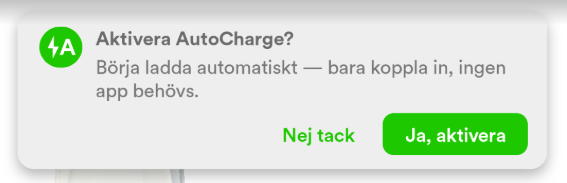
Select "Yes, activate" to activate the service for your car.
Note: If you select "No thanks", the question will not be shown again for this car.
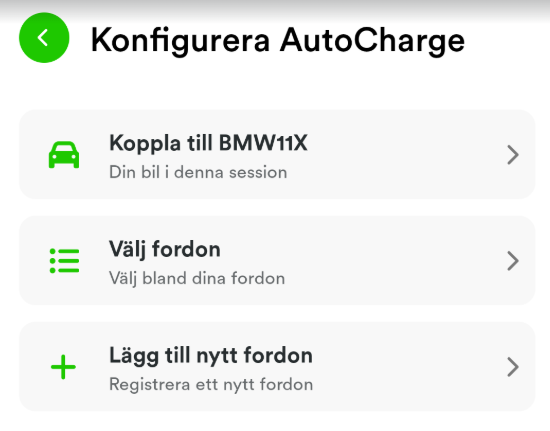
Select car (if you have several)
If you have already registered a car in the app, it is suggested automatically.
Otherwise, you can choose from your existing cars or add a new one.
Important to keep in mind
Responsibility: You are responsible for turning off AutoCharge if you:
Sell your car.
Hand in the car for service/repair.
Let someone else use the car.
Do this under "My vehicles" in the app to avoid someone else charging on your account.
Compatibility:
Some car brands do not support AutoCharge. If your car is not compatible, the service will not work – regardless of which car you select in the app.
Managing AutoCharge in the app
View status: Under "My vehicles" you can see which cars have AutoCharge activated.
Turn off: Go to your car in the app and deactivate AutoCharge.
Reset connection: If you want to disconnect the car from AutoCharge (but keep it in your car list), use "Reset" in the portal under "Cars".
Remove completely: Select "Remove connection" to delete the car's MAC address and start over from the beginning.
Frequently asked questions
Q: Why doesn't AutoCharge work for my car?
A: Check that:
Your car supports AutoCharge (some brands do not).
The charger you are using supports AutoCharge (see the area overview).
You have selected the correct car in the app.
Q: Can I use AutoCharge on several cars?
A: Yes, but each car must be activated individually.
Q: What happens if I forget to turn off AutoCharge when I sell the car?
A: The new owner can charge on your account. Turn off AutoCharge in the app under "My vehicles" before handing over the car.