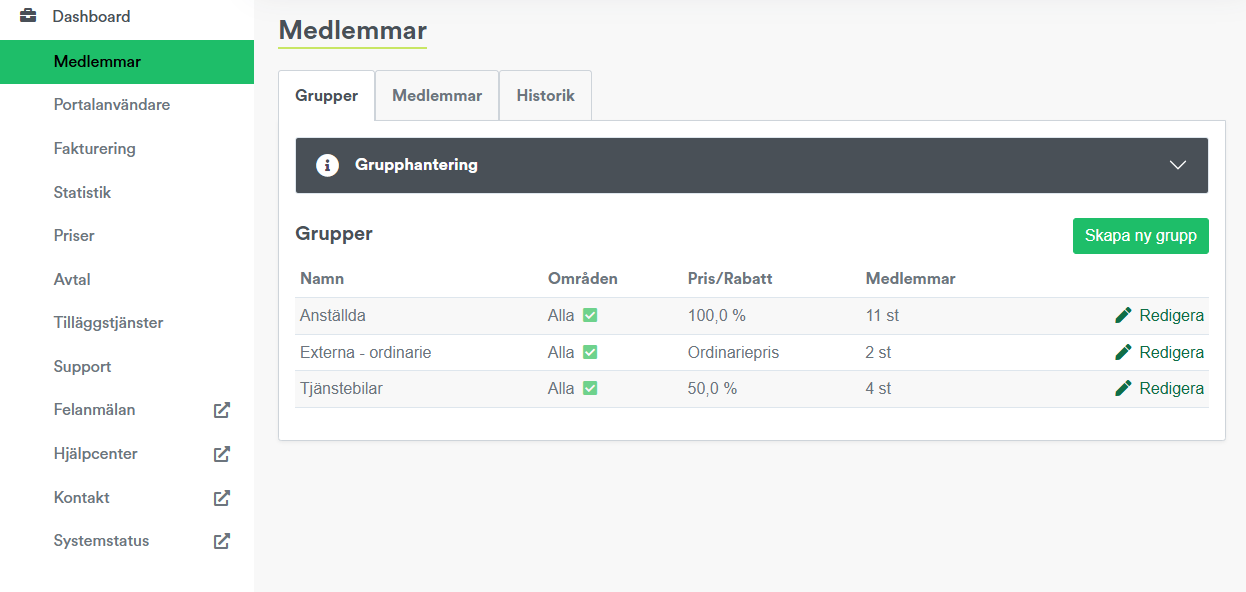
Groups
Here you will find an overview of all member groups. You can create new groups and edit existing ones. By clicking "Edit" or "Details" you will access the specific member group.
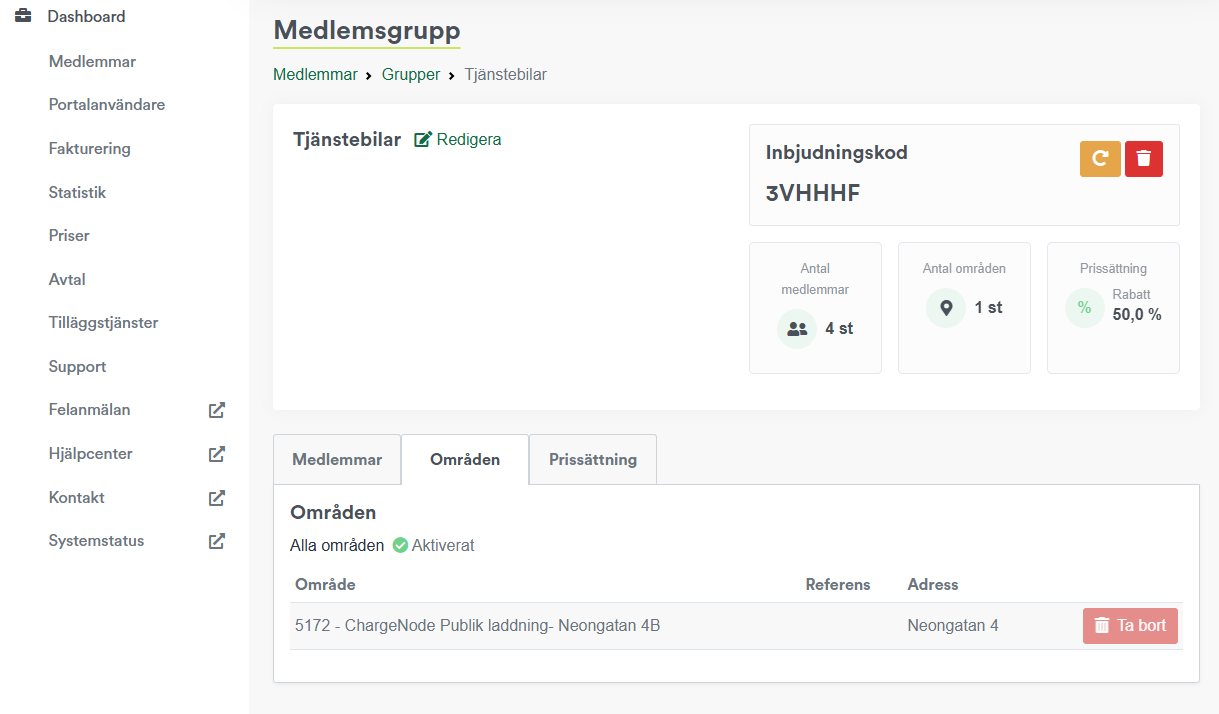
Members: On the group's page you can see which members belong to the group, add or remove members and generate an invitation code that users can enter in the ChargeNode app to join the group. The code can be replaced or removed as needed. You also get an overview of how many areas the group has access to and which price level applies. You can also edit the name of the group.

Areas: By clicking on "Areas" you can choose which areas the group should have access to. If you only have one area it is pre-selected, but if multiple areas exist you can specifically choose which ones should be linked to the group.
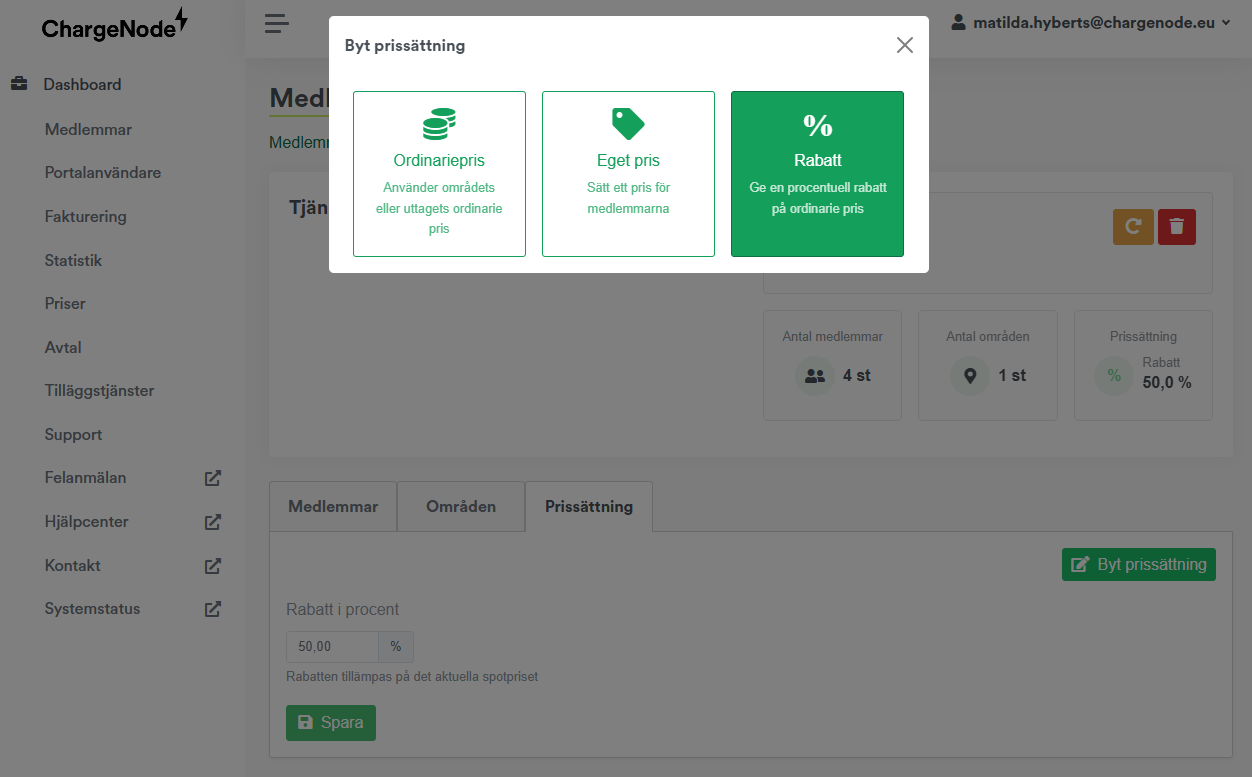
Pricing: There are three different types of pricing: standard price, custom price or percentage discount. In the example below, a 50% discount on the standard price has been selected.
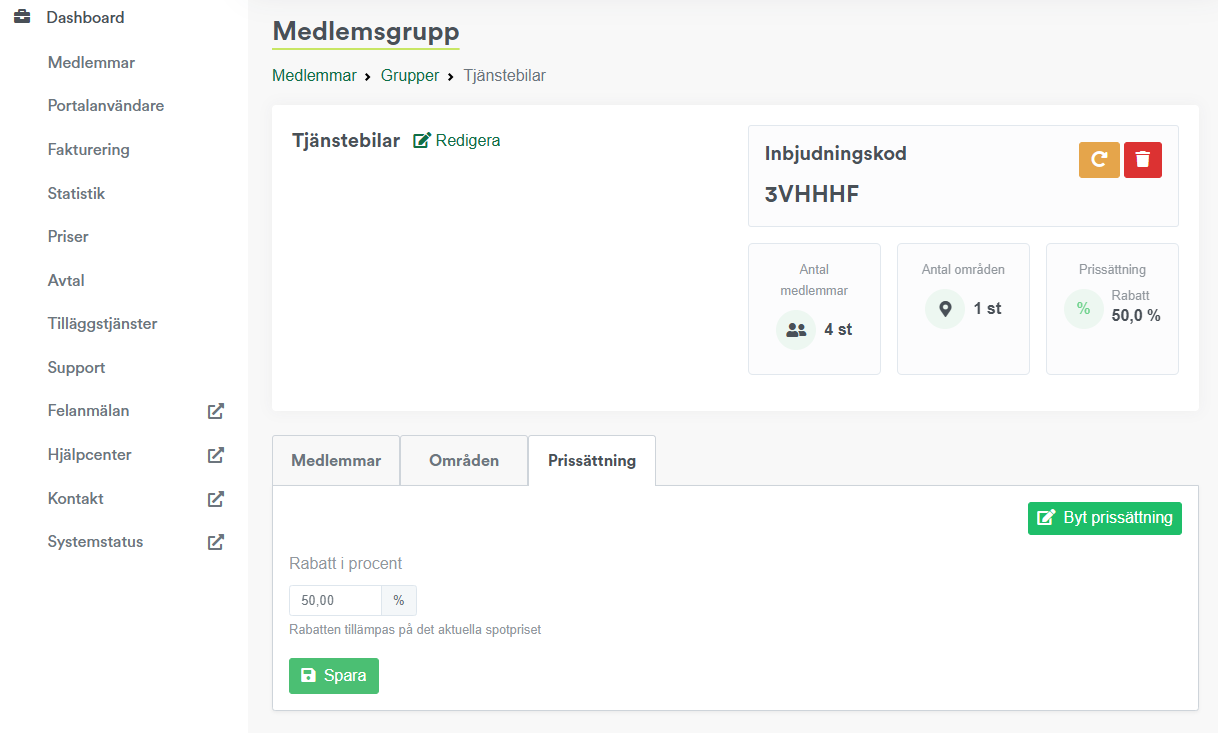
The three available pricing options are standard price (same price as in the area), custom price (choose any price) and percentage discount (discount on the standard price).
Members
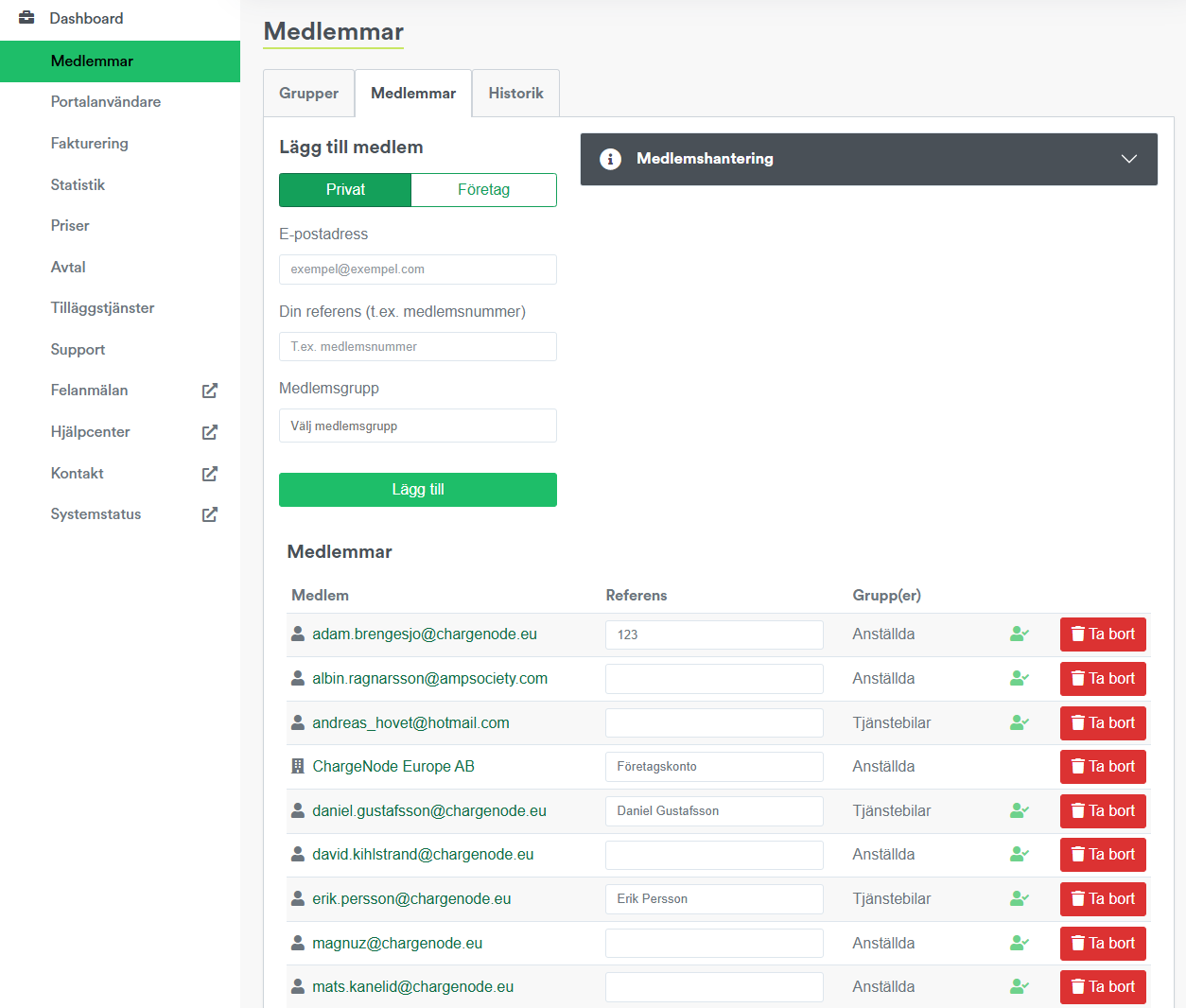
Here you will find an overview of all members. Add new members by entering their email address, reference and then selecting which group the member should belong to.
The icons on the right show green if the users have downloaded the ChargeNode app and activated their account, and grey if the account is inactive, which is a good way to monitor whether invited members are getting started as they should.
Each user can also view their membership in the ChargeNode app under Menu → Membership.
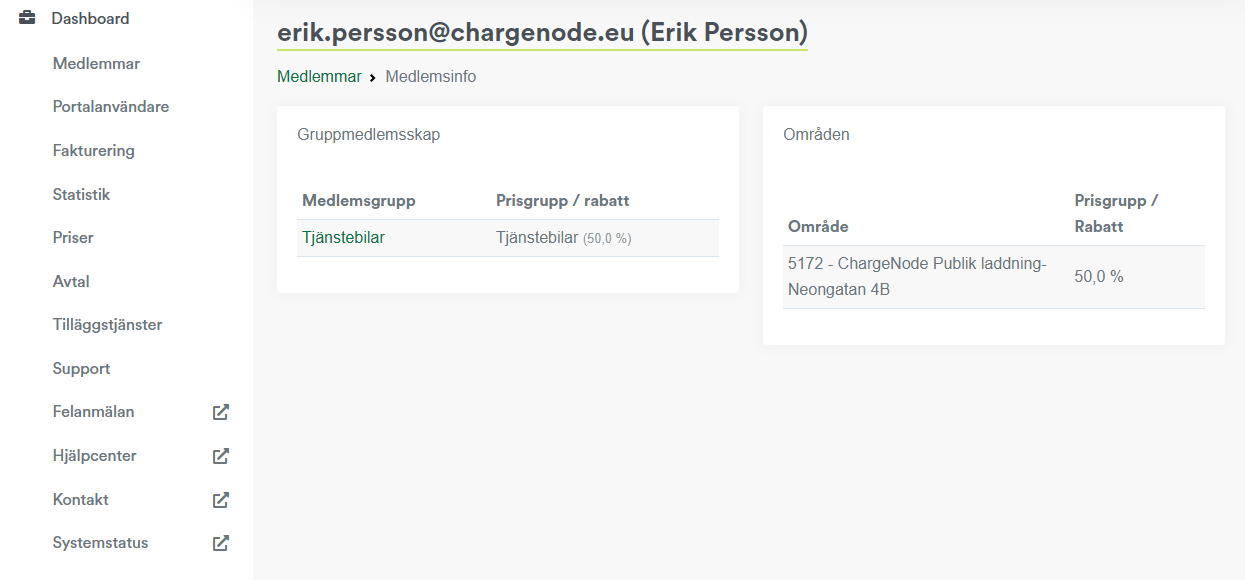
By clicking on a member, information is presented about which groups the user belongs to as well as a complete list of areas available to the member.
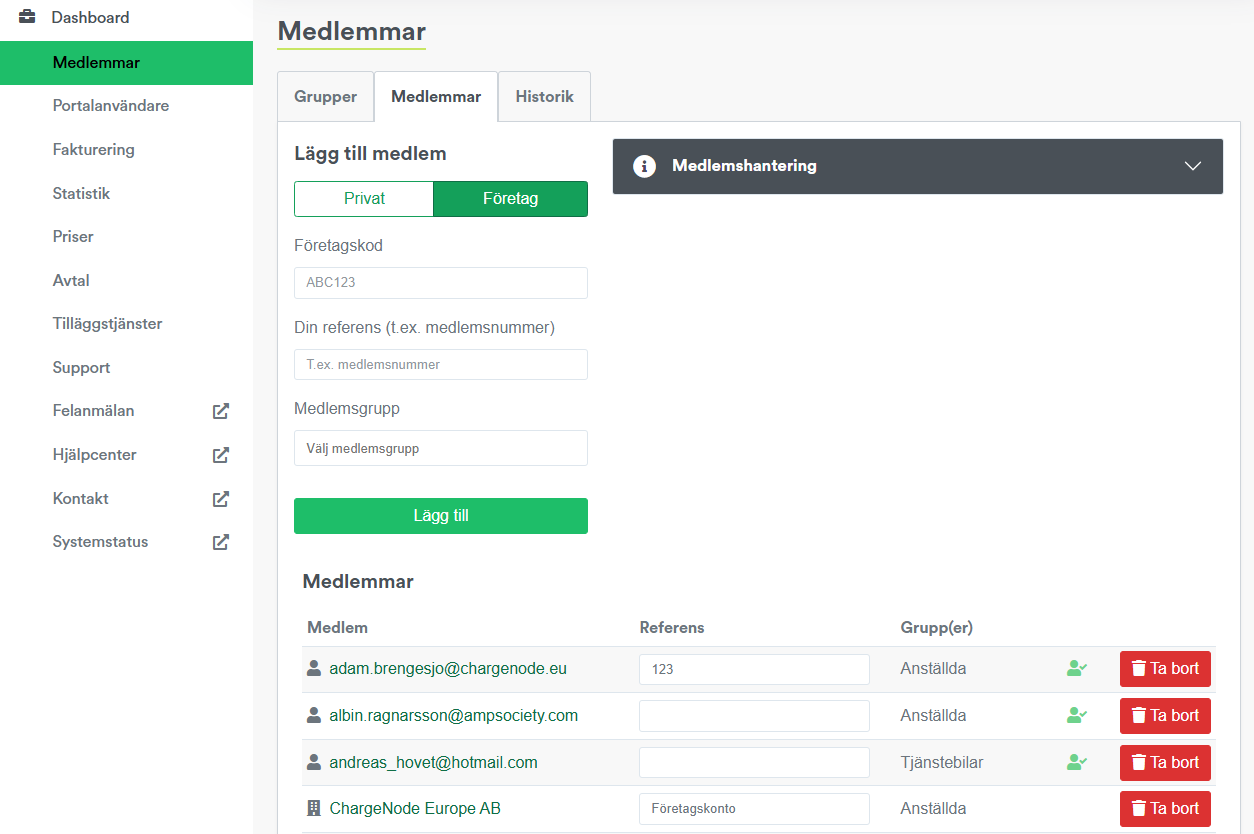
It is also possible to add companies as members. The company must have an active business account with ChargeNode and needs to share their unique company code with you, which you then use to create the membership.
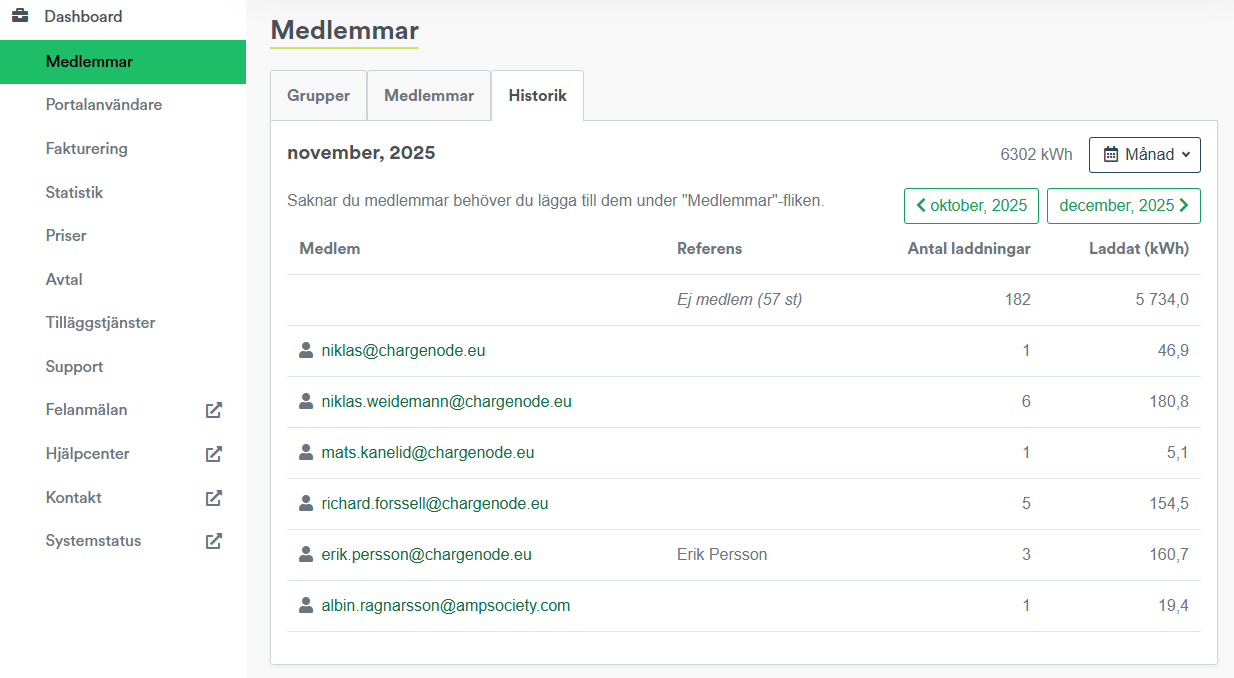
History
The view presents how many charges have been made by members/non-members and the amount of kWh charged. Can be filtered by month, quarter and year.